Vacations & Time Off
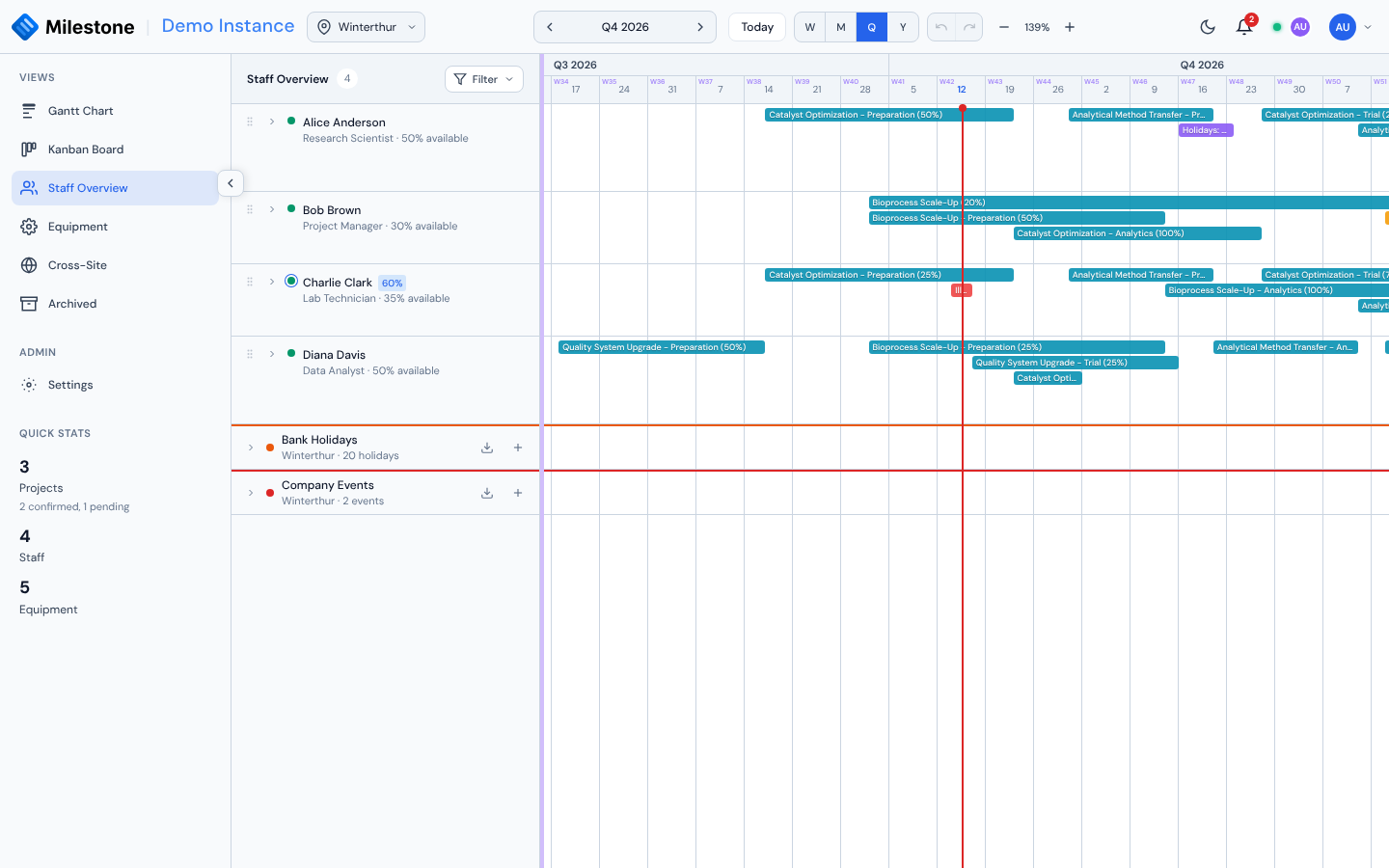
Milestone tracks staff absences — vacations, home-office days, illness, business trips, training and other time off — to provide accurate availability data in the Staff Overview and the workload views.
Absence Types
Every absence is booked with an absence type. Admins define the types for all sites in Settings → Absence types; new installations start with Holidays, Home Office, Illness, Business Trip and Training.
Each type has a color and a Counts as unavailable setting, which decides how the absence affects planning:
| Counts as unavailable (e.g. Holidays, Illness) | Available (e.g. Home Office) | |
|---|---|---|
| Shown on the Staff timeline | Yes, in the type's color | Yes, in the type's color |
| Reduces capacity in the workload heatmap | Yes — the day counts as time off | No — the person stays fully plannable |
| Today's availability in the Staff Overview and resource cards | Unavailable | Available |
If an unavailable and an available absence overlap on the same day (for example Illness during a Home Office week), the unavailable one wins.
Site closures
A shutdown or company holiday that applies to a whole site doesn't need an absence for every person: a company event marked as a site closure makes everyone on its sites unavailable for its dates, shown in the Staff workload view under the event's name and color.
Creating an Absence
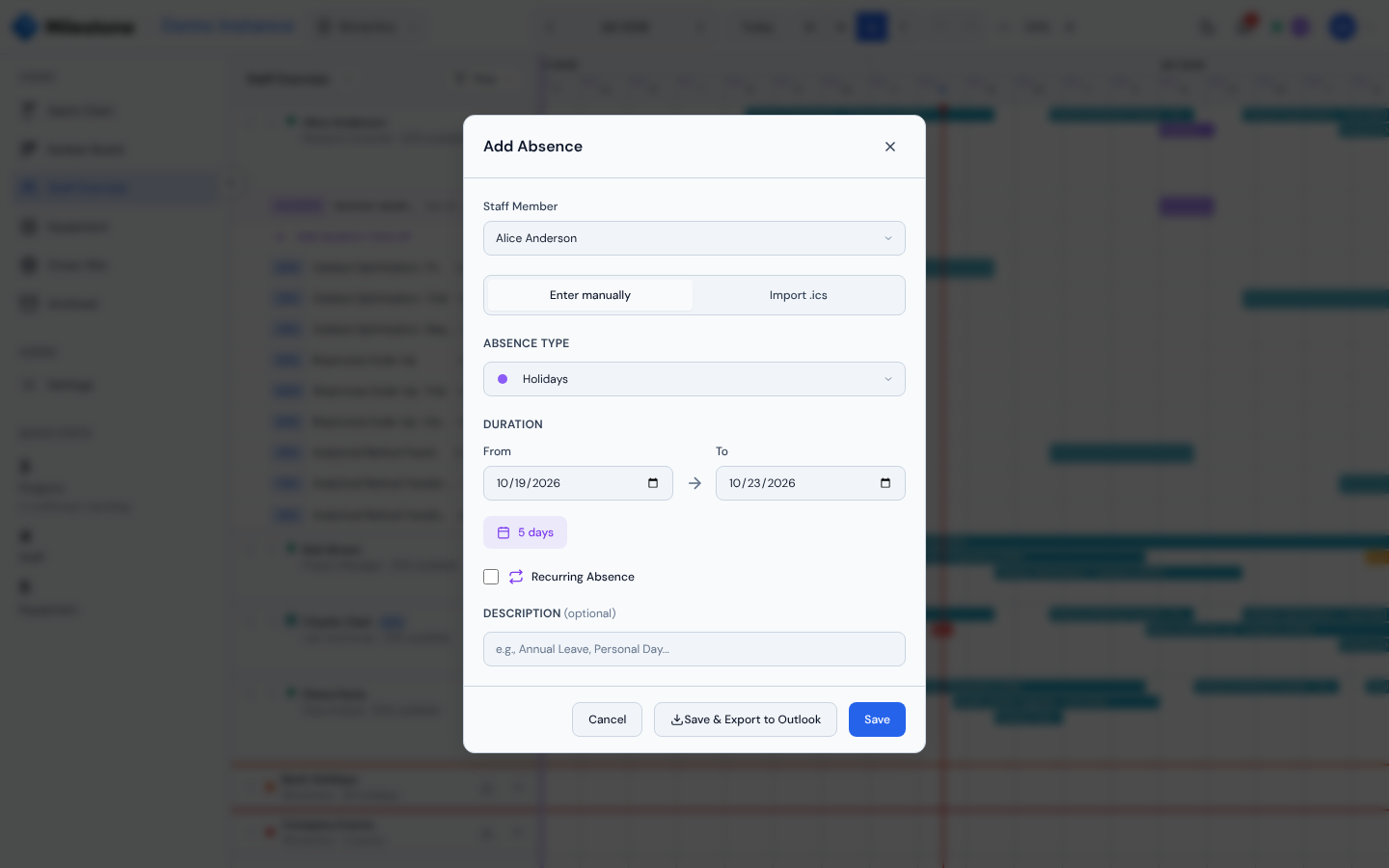
- In the Staff Overview, expand a staff member and click + Add vacation / time off — or use My absences for your own
- Choose the Absence type — it defaults to the first active type that counts as unavailable (normally Holidays)
- Set the From and To dates (duration is calculated automatically)
- Optionally add a description (e.g., "Annual Leave", "Conference")
- Click Save
Admins and superusers can create absences for any staff member by selecting them from the dropdown — at any site, not only their own; regular users can only book their own. Admins and superusers can click an existing absence in the Staff Overview to edit it. A person who belongs to several sites appears once in the staff picker.
An absence whose To date is before its From date is rejected.
What-If mode
Adding absences is unavailable while What-If mode is active, like other creates — the Add buttons are disabled with an explanation. Editing and deleting existing absences still works. (What-If is entered from the Gantt chart; My absences stays reachable from the user menu.)
Who Sees Whose Absences
| Role | Absences shown |
|---|---|
| Admin, Superuser | Everyone's, at every site |
| User | Their own, plus those of colleagues who share at least one site with them |
Absence descriptions can be personal (for example a reason for illness), so plain users no longer see the absences of people at sites they don't belong to.
Recurring Absences
For regular part-time patterns (e.g., every Monday and Wednesday off):
- Check Recurring Absence in the absence form
- Select the days of the week (Mon through Sun)
- Click Save
Recurring patterns are shown with a repeat badge in the staff list and only affect the selected weekdays — the Staff Overview, the workload heatmap and resource cards all treat the other days in the range as normal working days.
My Absences
Everyone — including regular users — can manage their own time off from the user menu (click your avatar in the header) → My absences. The window lists:
- Upcoming and current absences
- Absences from the last 90 days
Each entry shows its type (with an available note for types such as Home Office that don't reduce capacity), dates, description and any recurring days, with Edit and Delete buttons. Click Add absence to book a new one, or Import .ics to load several from a calendar file.
The Staff Overview keeps its own entry points — + Add vacation / time off and clicking an existing absence — for admins and superusers planning on behalf of others.
Importing from Calendar (ICS)
Import absences directly from Outlook or other calendar applications — from My absences → Import .ics, or from the Import .ics tab of the absence form in the Staff Overview:
- Pick a Default absence type for the import
- Drag-and-drop an .ics file onto the upload zone (or click to browse)
- Milestone parses every event in the file and shows a preview with a Type column per row. The type is prefilled from the file where possible:
- Outlook entries marked Working elsewhere become Home Office
- an Outlook category with the same name as an absence type, or a title containing a type name (e.g. "Training — Excel basics"), uses that type
- anything else follows the default type
- Absences that already exist for that person with the same dates are flagged Exists and unticked
- Adjust the type of any row, untick what you don't want, and click Import
A summary shows how many absences were created and skipped. Yearly recurring entries are expanded into one absence per year; other recurring entries can't be imported and are listed as not imported. The importer handles UTF-16 encoding (common with SAP calendar exports). Files larger than 5 MB are refused — export a shorter date range from your calendar instead.
What-If mode
Importing is unavailable while What-If mode is active — apply or discard your What-If changes first.
Exporting to Outlook
Click Save & Export to Outlook (instead of just Save) to download an .ics file that you can open in Outlook or any calendar app to sync the time off to your personal calendar.